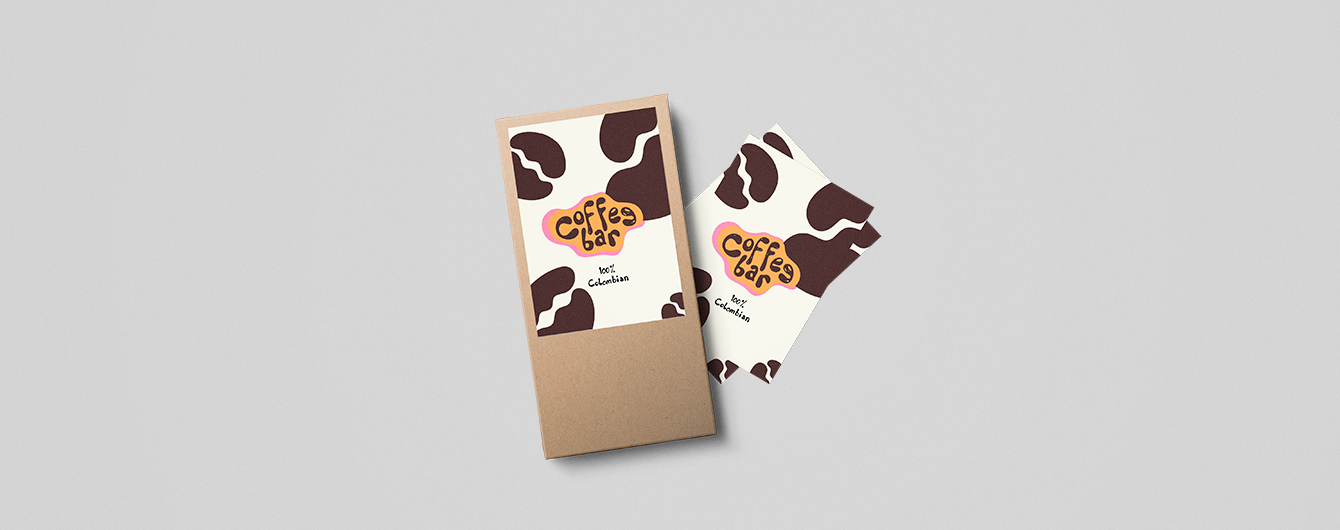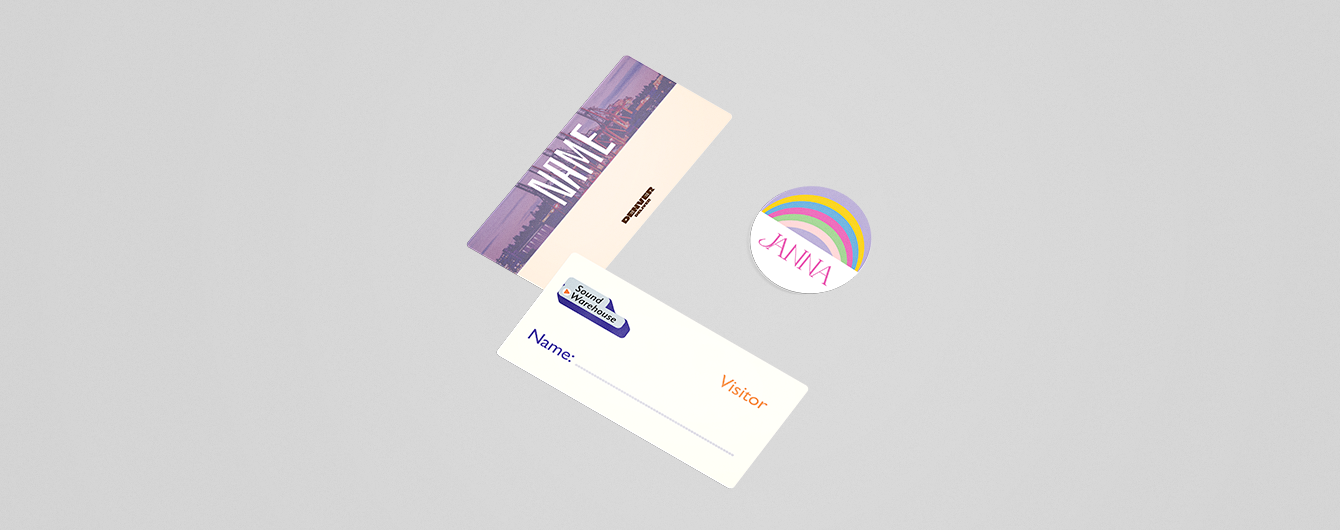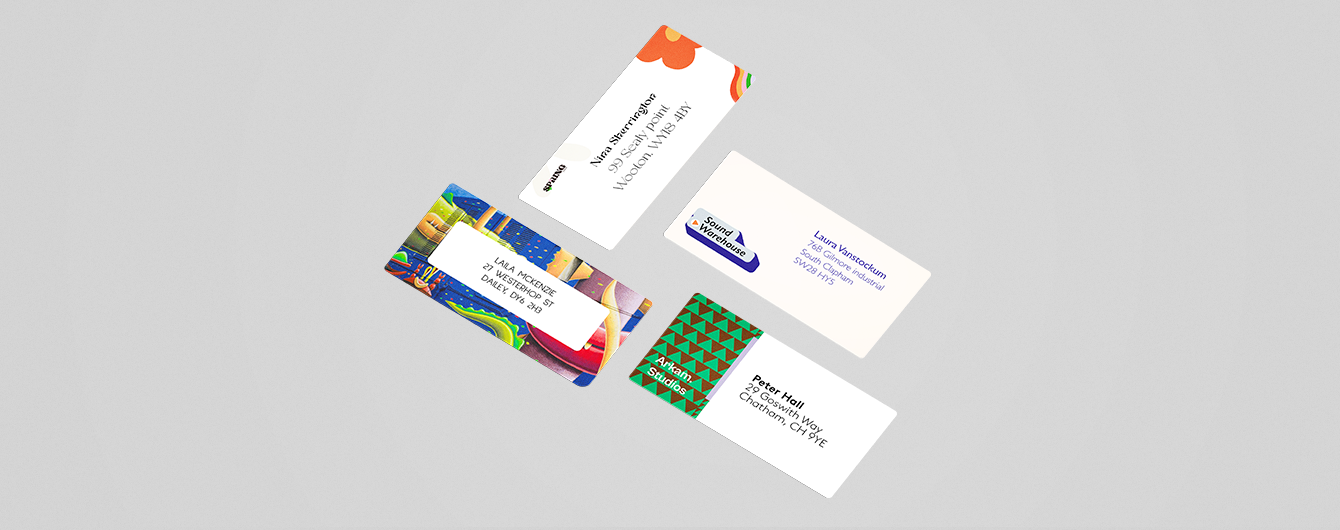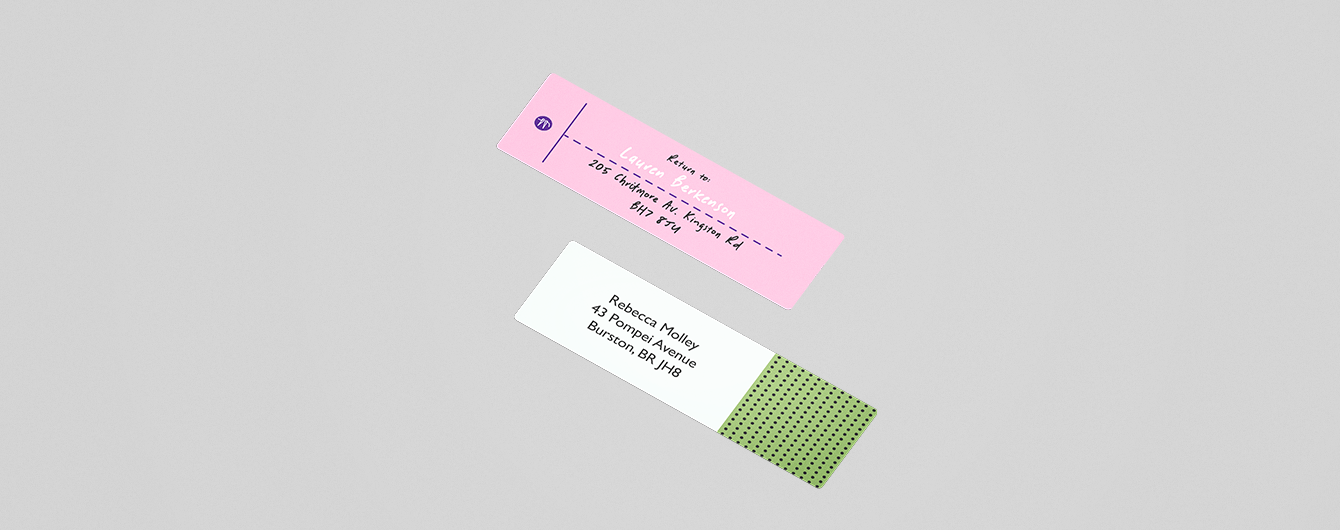
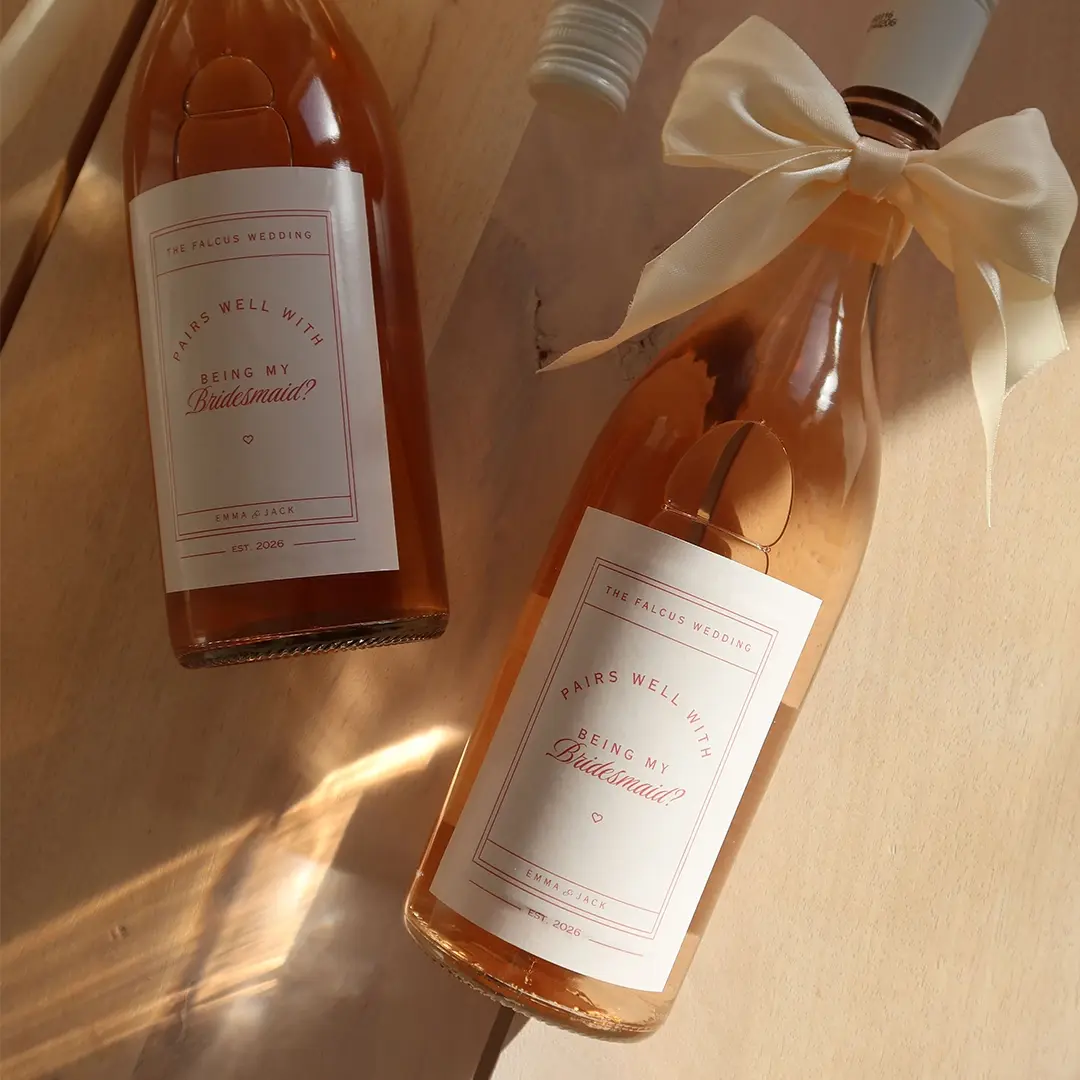
Wedding Bottle Labels
Labels Product Category Header
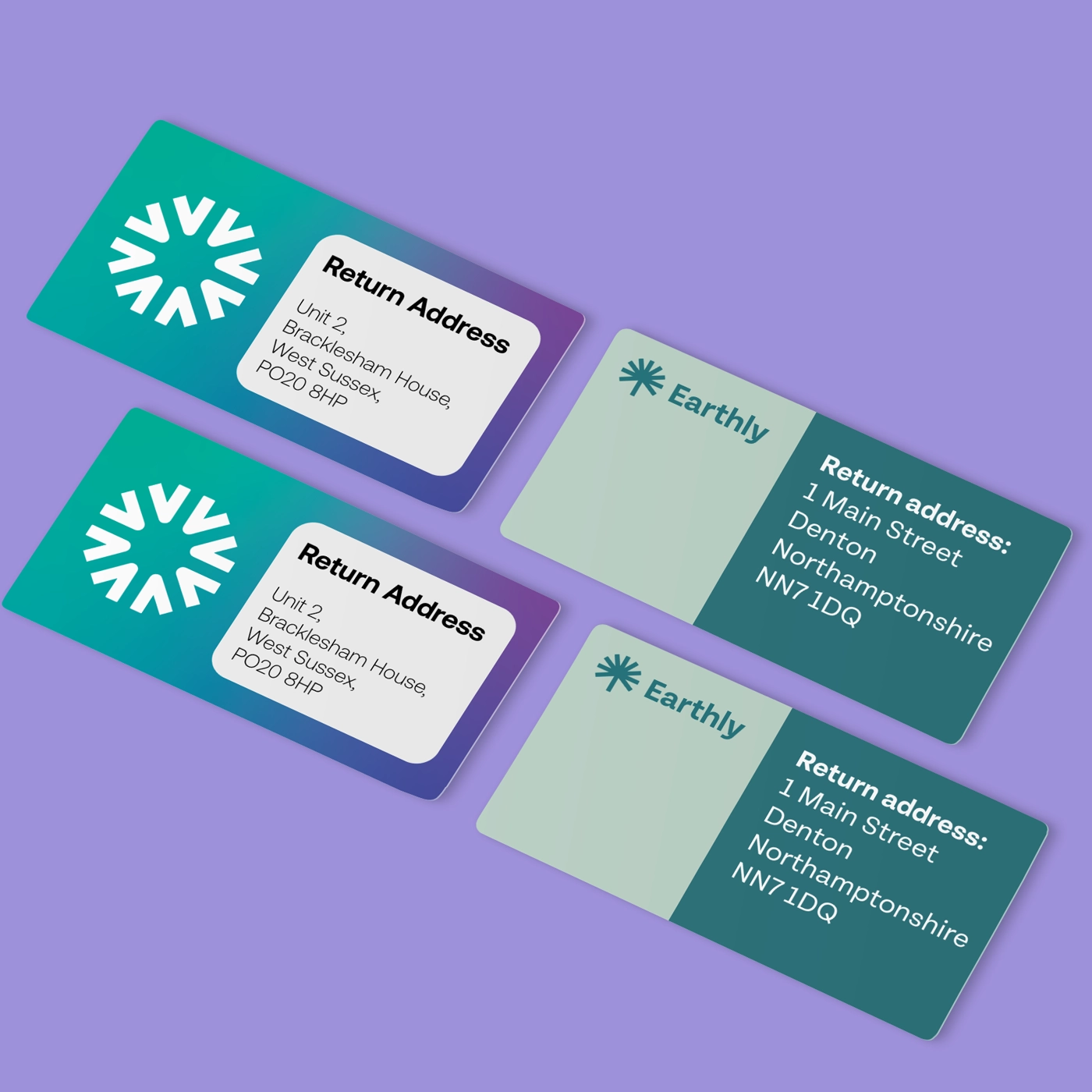
Printed Return Address Labels
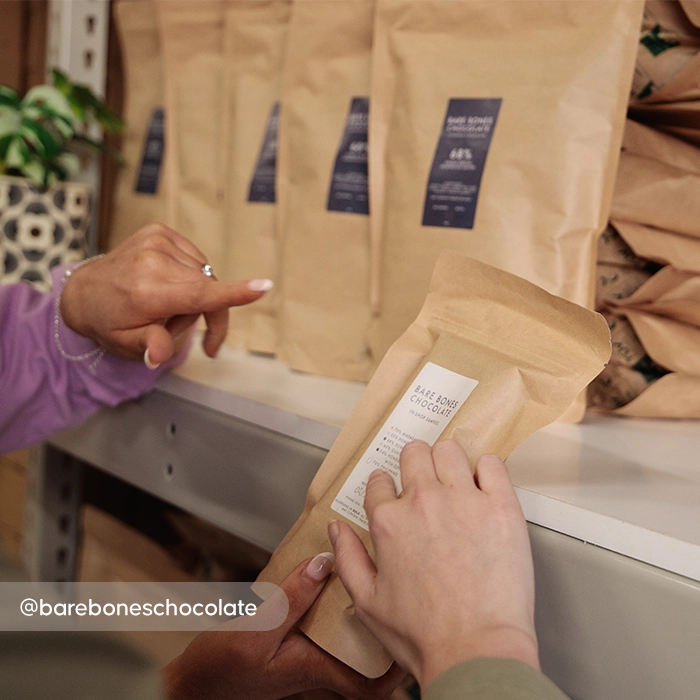
Product Label Printing
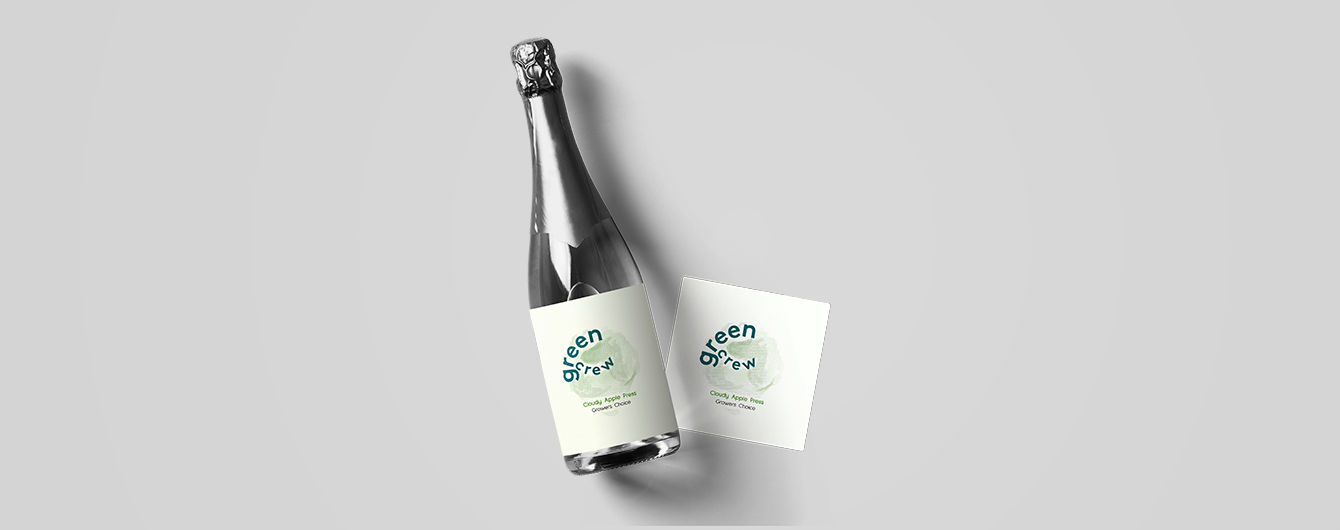
Wedding Bottle Labels
Labels Product Category Header

Label Printing

From  £ 10.00 (ex VAT)

Excellent 4.6
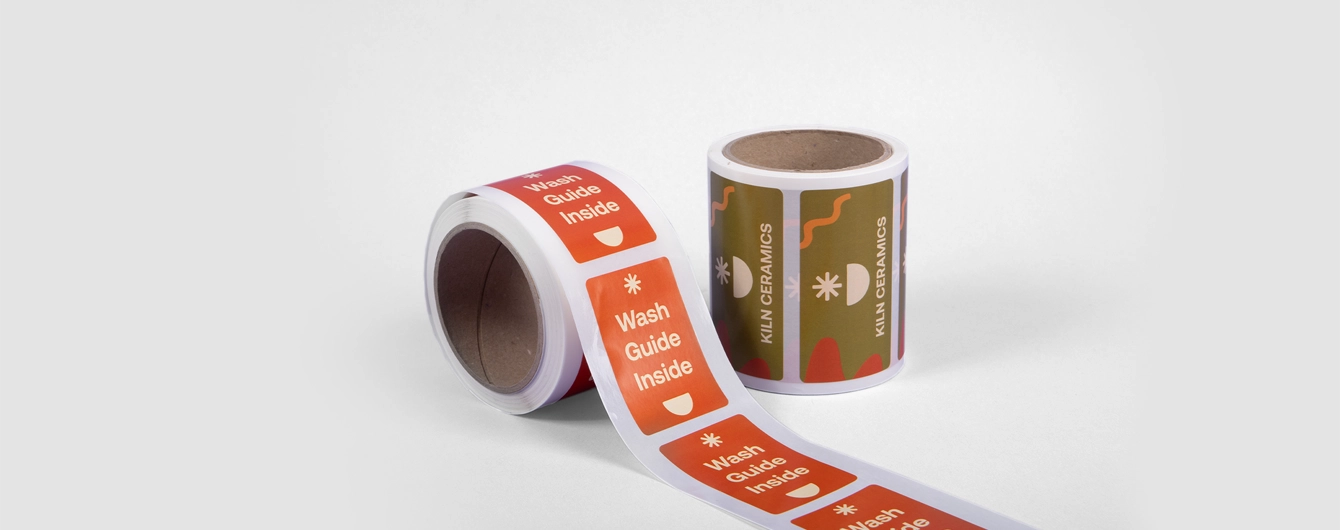
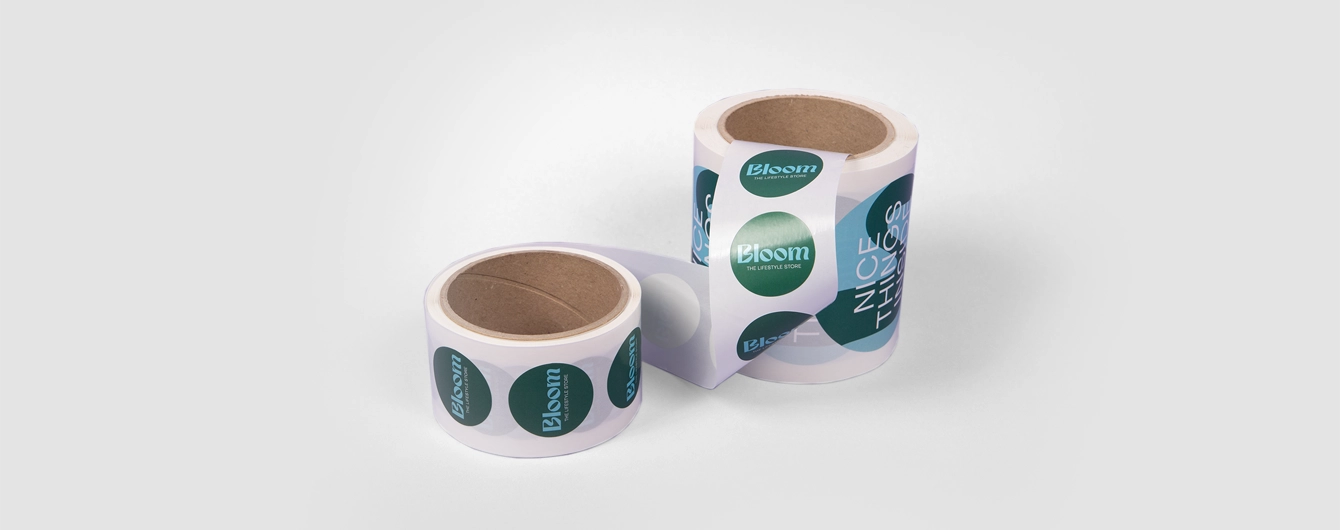
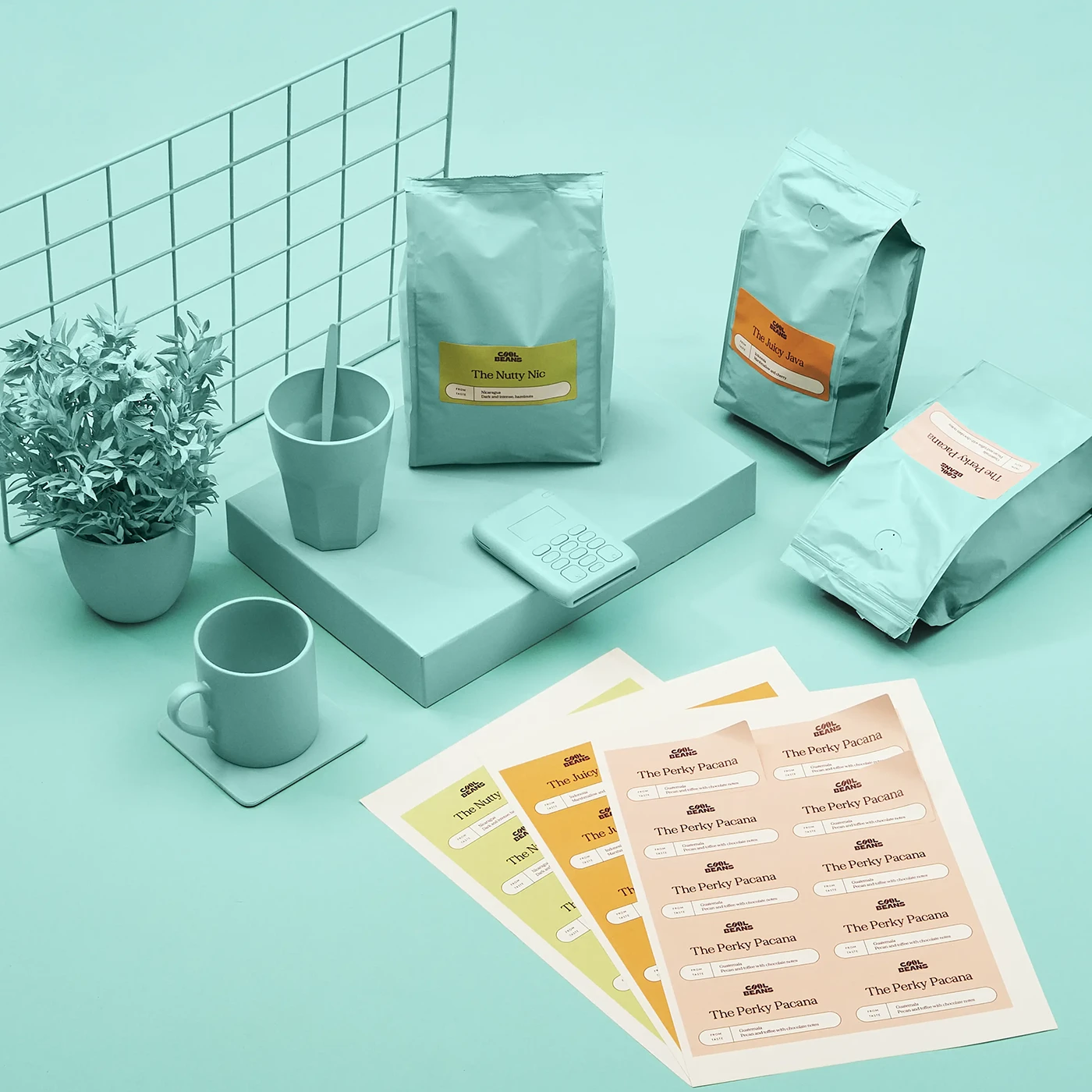
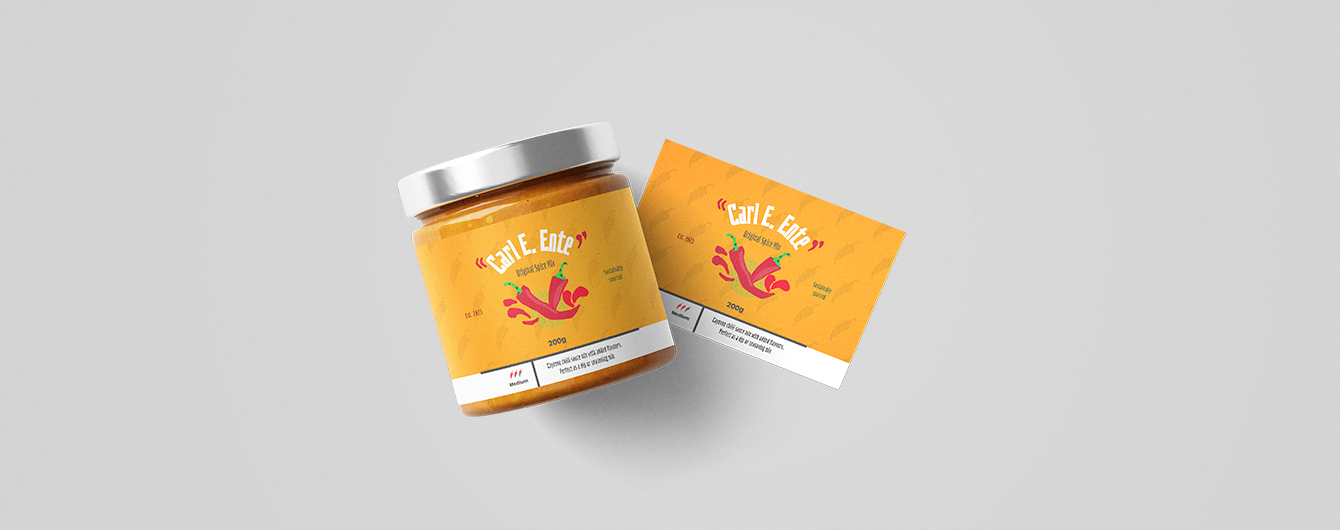
Add instant branding to your own homemade products and packaging, customise your belongings or add a personal touch to post, all at the stick of a Label. From custom Labels for food packaging to Address Label printing, the possibilities are endless. More information

  • Wide range of sizes
  • Waterproof Product Labels available
  • Personalise your Name Labels individually
Build Your Own

Customise your product to your exact specification. We’ve got all the options you need to bring your print to life. Let’s make it real!
Popular this week

Our stocks

Find your perfect match

Showing 1-51-4 of 5

White Opaque

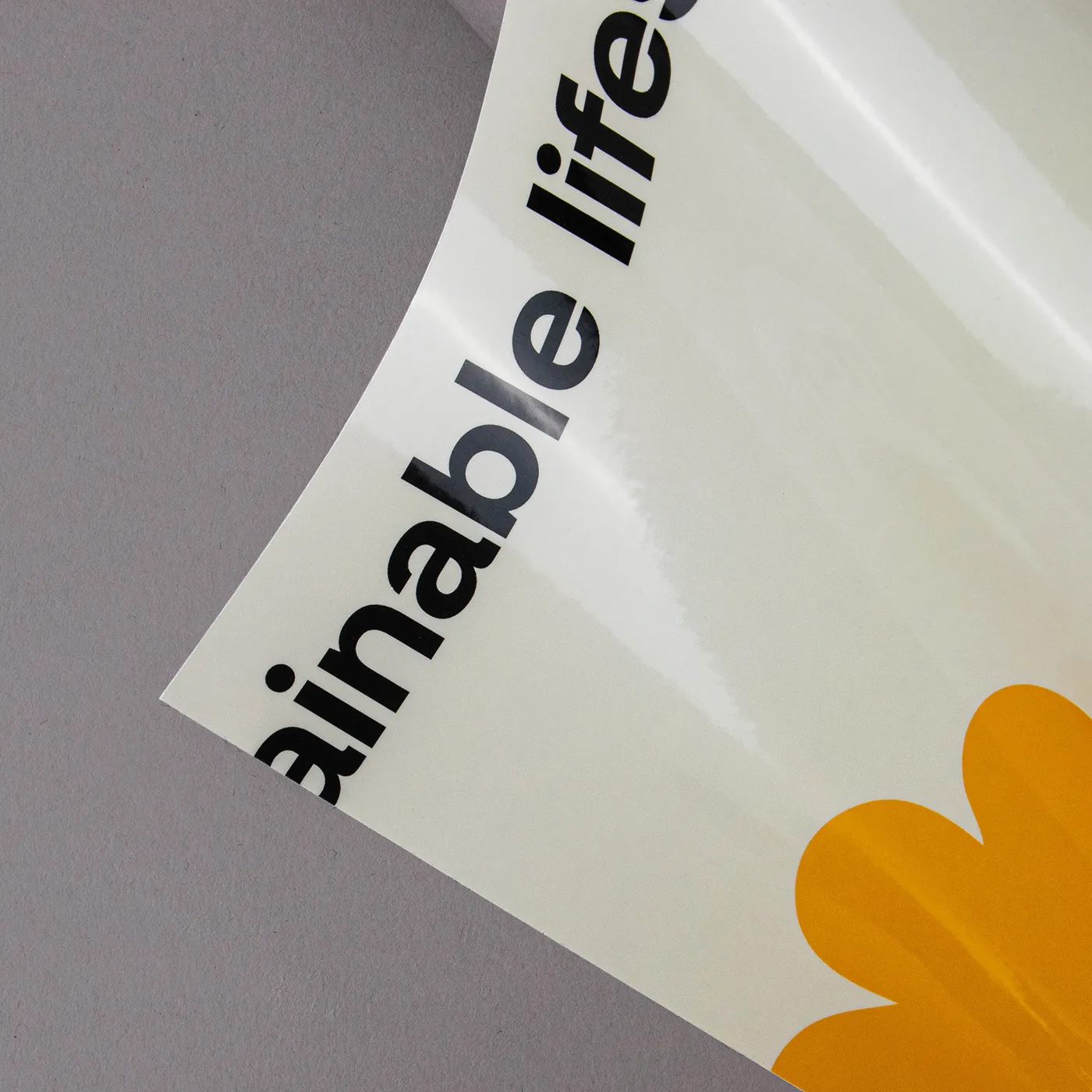
Our White Opaque Sticker stock has a crisp and glossy off-white front which creates muted colour printing, and a black backing which makes it opaque and perfect for sticking over the top of text or pattern. It's also safe for indirect contact with food.

White Polyester (Waterproof)

If you need a tear-resistant and waterproof Label, look no further. With a polyester film and a low surface sheen, printed colours really stand out on this material.
Silver Gloss (Waterproof)

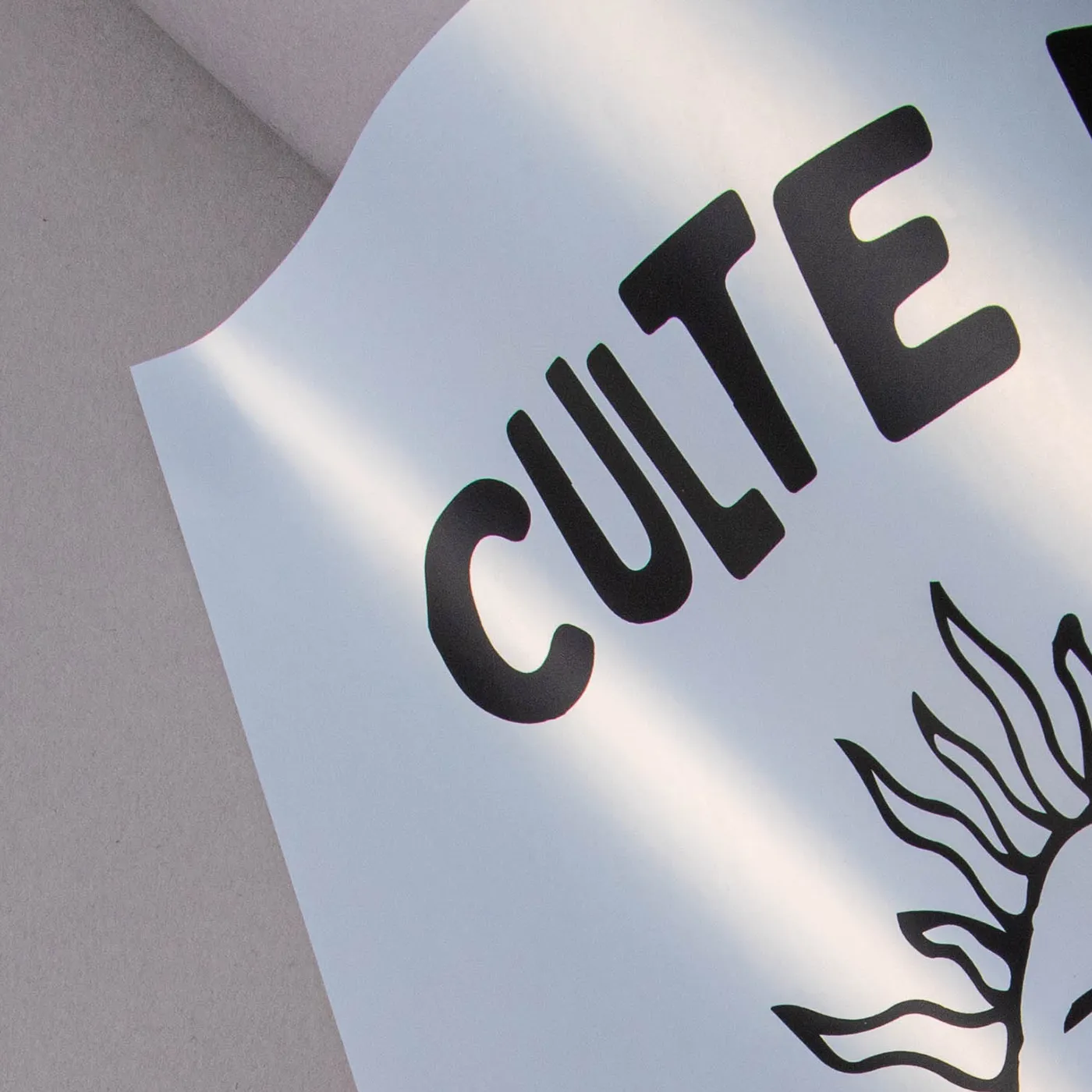
A durable, waterproof Sticker material with a sleek metallic silver finish that adds shine and visual impact to designs. Easy to peel and apply, with white areas left unprinted leaving the silver surface.

Antique Laid

Add a retro feel to your Labels with Antique Laid. With a creamy colour and fine lined texture, it’s high-wet strength makes it ideal for luxury food and drink products.

White Gloss

A smooth white Sticker material with a classic semi-gloss finish that enhances colour and detail. Featuring an easy-to-peel backing, it provides a clean, vibrant finish.

White Opaque

Our White Opaque Sticker stock has a crisp and glossy off-white front which creates muted colour printing, and a black backing which makes it opaque and perfect for sticking over the top of text or pattern. It's also safe for indirect contact with food.

Available weights

  • 190gsm

Best for

  • Adhering to cardboard packaging 
  • Covering existing labels
  • Indirect food contact

Credentials

  • Suitable for chilled food packaging
  • Heat resistant
  • Black opaque backing

White Polyester (Waterproof)

If you need a tear-resistant and waterproof Label, look no further. With a polyester film and a low surface sheen, printed colours really stand out on this material.

Available weights

  • 170gsm

Best for

  • Cosmetics packaging
  • Wine/Beer bottles
  • Food packaging
  • Product Labels

Credentials

  • Low surface sheen
  • Tear-resistant

Silver Gloss (Waterproof)

A durable, waterproof Sticker material with a sleek metallic silver finish that adds shine and visual impact to designs. Easy to peel and apply, with white areas left unprinted leaving the silver surface.

Available weights

  • 170gsm

Best for

  • Premium metallic branding
  • Eye-catching promotional Stickers
  • Cosmetic & beverage packaging

Credentials

  • Waterproof
  • Wood-free
  • Chlorine-free
  • Solvent-free adhesive

Antique Laid

Add a retro feel to your Labels with Antique Laid. With a creamy colour and fine lined texture, it’s high-wet strength makes it ideal for luxury food and drink products.

Available weights

  • 170gsm

Best for

  • Product Labels
  • Wine/Beer Bottles
  • Luxury Packaging

Credentials

  • Sustainably sourced
  • Child and food safe
  • Chlorine-free

White Gloss

A smooth white Sticker material with a classic semi-gloss finish that enhances colour and detail. Featuring an easy-to-peel backing, it provides a clean, vibrant finish.

Available weights

  • 170gsm

Best for

  • Promotional and marketing Stickers
  • Colour-rich branding
  • Food & product packaging

Credentials

  • FSC Mix Credit certified
  • Food contact compliant
  • Resistant to light, heat, and ageing

Guide to perfect print

Get your print to the presses perfectly with everything you need to get set up

Sample Packs

Get a feel for our range of quality products, papers and special finishes in our free Sample Packs.

Order Now

Downloadable Templates

Use our free templates to create your artwork and make sure your print is set up perfectly for the presses.

Find A Template

Bespoke Service

Can’t find the print you’re looking for? From unique papers to custom sizes and finishes, our Bespoke Team can help with your request.

Get A Quote

Safe area

Templates

Product
Template Size
File type

Quick tips to print perfection

Which file types can I use? arrow
We like to be as flexible as possible, so you can upload your files as PDF, JPEG, TIFF and PNG. PDF's and JPEGs are the most accepted file type across all our products, so we recommend using those wherever possible.
What is bleed? arrow
Bleed is an area of print outside the document that must be added to your artwork before it’s sent off for print. By adding the all-important bleed (a minimum of 3mm on all edges), there’ll be no risk of white space left on your document and it'll be trimmed correctly without cutting into any design. Some products require a different amount of bleed, so be sure to check our downloadable templates to find out the correct amount.
What is safe area? arrow
The safe area is the space inside where your print will be trimmed. Keeping any important parts of your design away from this area will make sure that they aren’t accidentally trimmed off due to the natural movement while your print gets finished. Our downloadable templates will indicate the recommended amount of safe area for your print.
What’s the difference between RGB and CMYK? arrow
​​RGB is the colour gamut used to display images on a computer screen, and stands for Red, Green and Blue. CMYK is the colour gamut used for conventional printing, and stands for Cyan, Magenta, Yellow and Black. Unless you’re printing Giclée Fine Art Prints or Photographic Prints, please set up your artwork in CMYK.
What are Versions? arrow
Our Versions service lets you print multiple designs using the same product specifications. For instance, if you have five different designs that share the same size, orientation, and paper stock, you can print them all at once using this service. By opting for Versions, you're increasing your overall quantity, which means you'll enjoy a lower cost per unit. To use Versions, simply select "yes" in the product builder when prompted with "Do you want to print more than one design?". When using Versions, the quantity you enter in the product builder applies to each design. For example, if you choose a quantity of 10 with 5 Versions, you'll receive a total of 50 prints.
What is personalisation? arrow
Personalisation is a simple, cost-effective way to tailor each of your individual prints. You can use personalisation for different text elements like names, addresses, and even personalised messages. However, if the text content on your design is the same for all prints, you don't need personalisation. There are two main options for personalising your print - you can either choose to add the personalised elements to your artwork yourself, or send us your artwork with a placeholder and a CSV containing a list of all the names/ personalised elements, and we’ll merge the two for you.
Why do I need to embed fonts? arrow
If you don’t embed fonts and your document is opened on another computer system that doesn’t have access to the original fonts, different fonts will be substituted instead. This could really affect the look of your finished print. Embedding fonts into your original design will stop them from changing.
Everything you need to know about resolution arrow
Remember to save your artwork out at a minimum of 300dpi resolution. This will ensure that when printed, your artwork quality is as crisp as possible.
Where can I find templates for shapes? arrow
If you've chosen a shape for your print (such as arch, wavy, circle or pebble where available), you'll find templates for these shapes on additional layers within the standard square or rectangular template. Download the template for the correct size, then delete the layers you don't need, leaving the layer for your chosen shape as a guide while creating your artwork. Delete all template layers before saving and uploading your artwork. This will prevent the template from being printed on top of your design.

Your guide to great Sticker printing

Explore our expert guidance, practical tips and inspiration to help you create a Sticker or Label that's right for your project. 

Learn More
Banner image

More information

Explore our diverse range of Labels, perfect for small businesses, online retailers, and home users. From Food Packaging Labels to Address Labels, our Custom Labels are designed to meet all your needs. Our waterproof options ensure durability and longevity, even in the most demanding environments. For those looking to add a touch of sophistication, our textured Product Label options provide a unique and premium feel. With high-quality Label printing, you can personalise your Labels to reflect your brand's identity. Discover the best in printed Labels and enhance your product presentation with our expertly crafted solutions today.

WATCH

Kraft Stickers

Frequently asked questions

Got a question? We might have answered it here. If not, feel free to get in touch with The Team, we’re here to help! 

How long will my print take to arrive?

Find out how quickly you can get your print by filling in your selected options in the product builder, and check out the delivery options at the bottom. You can also explore the available delivery options from your basket once you’ve added a product. 


You’ll notice that if you put multiple items into your basket, they may be sorted into “delivery groups” based on delivery days, in order to help us ship your items as quickly and efficiently as possible. Find out more about delivery groups here.

Once your order has been dispatched you’ll get an email from us which includes a tracking code. You can also easily track the status of your delivery at any time by logging into your Account and checking the Orders page. 

Find out more about our delivery services here, including details of delivery options based on your region. 

What should I know before preparing artwork for print?

Here are the 7 key things you need to know before preparing your artwork to be printed with us:

1. We provide downloadable templates:
On most of our product pages, you can find free downloadable templates to help you set up your artwork for print. They’re available in AI, IDML and PDF formats to suit the design software you’re working in. Our downloadable templates include key information on creating artwork as well as instructions on how to save out your print-ready PDF. 

2. You need to include bleed:
Bleed is an area of print outside the document that must be added to your artwork before it’s sent off for print. By adding the all-important bleed (a minimum of 3mm on all edges), there’ll be no risk of white space left on your document and it'll be trimmed correctly without cutting into any design. Some products require a different amount of bleed, so be sure to check our downloadable templates to find out the correct amount. 

3. Keep in mind the safe area:
The safe area is the space inside where your print will be trimmed. Keeping any important parts of your design away from this area will make sure that they aren’t accidentally trimmed off due to the natural movement while your print gets finished. Our downloadable templates will indicate the recommended amount of safe area for your print. 

4. The difference between RGB and CMYK:
​​RGB is the colour gamut used to display images on a computer screen, and stands for Red, Green and Blue. CMYK is the colour gamut used for conventional printing, and stands for Cyan, Magenta, Yellow and Black. Unless you’re printing Giclée Fine Art Prints or Photographic Prints, please set up your artwork in CMYK. 

5. Embed your fonts:
If you don’t embed fonts and your document is opened on another computer system that doesn’t have access to the original fonts, different fonts will be substituted instead. This could really affect the look of your finished print. Embedding fonts into your original design will stop them from changing. Find out how to embed your fonts here.

6. Check your image resolution:
For the best print results, all artwork files should be at least 300dpi (dots per inch) when saved at the actual size they will appear in your design. This ensures that your final printed project is sharp and clear, not blurry or pixelated.

7. How to export a PDF:
Exporting your design into a print-ready PDF is easy. We’ve created some handy video guides which will take you through the process which you can find here.

Find lots more artwork tips here, including if you’re printing any special finishes such as foiling. For products with multiple pages, such as Brochures or Booklets, explore our book printing guide here. 

What is a Professional File Check?

For a small fee, an expert member of our technical team will manually review your artwork before it goes to print so you can press 'go' with complete confidence. 


If you've ordered multiple products, you can choose to add a Professional File Check to individual jobs or your entire order. We'll check your file for common print setup issues and, where possible, fix them before production. If we find anything that needs your attention, we'll contact you and place your order on hold until you've updated and re-uploaded your artwork. 

We'll check things like: 
  • Image resolution for print quality 
  • Bleed and safe areas 
  • Page count and page order on folded products
  • Corrupt, blank or password-protected files 
  • Templates left on artwork 
  • Folds, cut lines, drill holes and binding areas (where applicable) 
  • Foil alignment and minimum line widths (where applicable) 
  • Personalisation files and version quantities (where applicable) 

A Professional File Check doesn't include: 
  • Spelling, grammar or proofreading 
  • Design, layout or text sizing advice 
  • Colour accuracy or colour mode checks (RGB/CMYK) 
  • QR code testing 
  • Calendar date checks 
  • Post-print quality inspection beyond our standard production processes 
See a full list of what's included here. 

Adding a Professional File Check won't delay your estimated delivery date, unless we need you to amend and re-upload your artwork after we've reviewed it.

To upgrade to a Professional File Check, simply select the option when you upload your artwork. We'll take care of the rest and let you know if we spot anything that needs your attention before your job goes to print.

How do I print with Canva?

Printing with Canva is quick and easy with Printed.com. Select your product, create your artwork in Canva, and export it as a print-ready PDF. Once uploaded to Printed.com, we handle the rest! 

For help with accurate sizing, bleed and export settings, please visit our Canva Support page for step-by-step guides and video tutorials. Plus, you can explore our library of free pre-formatted Canva templates to get started.

How to design a Label?

Designing a Label is a fun and creative process. Key steps include defining the purpose, choosing a suitable template, selecting colours and fonts that match your brand, adding graphics and logos, reviewing and proofreading for errors, and using design software to make sure your print is ready for the presses.

Can I make my Labels waterproof?

Absolutely, you can make your Labels waterproof by opting for either White Polyester (Waterproof) for tear resistance and vibrant colours, or Silver Gloss (Waterproof) for a shiny, durable finish. Both choices ensure your Labels stay durable and look great.

Does the quantity for Labels relate to the amount of Labels or the amount of sheets?

When you place an order of Labels, you're ordering by the number of Labels, not by the number of sheets. This means you can be sure you're getting exactly the quantity you need, regardless of how many sheets it takes to fulfil your order. The amount of sheets you receive will depend on the size of Label you choose, determined by how many we can fit on one oversized A4 sheet.

Do your Labels leave a residue?

Our Labels feature a permanent adhesive to ensure they stay in place once applied. While this makes them reliable, they may leave some residue when removed. If that happens, a bit of rubbing alcohol or adhesive remover should help.


We're here to make your Label printing experience smooth, so don't hesitate to reach out to The Team if you have any questions or need assistance!

Address Labels

1

Our product presets

Build your own or choose from one of our preset options

2

Product

3

Orientation

4

Paper

i
The kind of paper you choose for your print will determine how your colours look. For example, uncoated papers such as Tintoretto Gesso create a slightly more muted finish than a coated paper such as Silk, which is best for bright colours. Don't forget to consider weight as well. Weight of paper is measured in GSM (Grams per Square Meter). The higher the number you choose, the thicker it is. For example, the paper you find in your home printer is around 80gsm, whereas luxury Business Cards are usually between 300 and 400gsm.'
i
The kind of paper you choose for your print will determine how your colours look. For example, uncoated papers such as Tintoretto Gesso create a slightly more muted finish than a coated paper such as Silk, which is best for bright colours. Don't forget to consider weight as well. Weight of paper is measured in GSM (Grams per Square Meter). The higher the number you choose, the thicker it is. For example, the paper you find in your home printer is around 80gsm, whereas luxury Business Cards are usually between 300 and 400gsm.'

5

Quantity

Choose the quantity of Labels you need.

6

Extras

7

Select your Delivery options

Delivery type

Product Summary

Our product presets

Build Your Own

Product

Address Labels

Size

96mm x 51mm

Orientation

-

Printed sides

One Side

Paper

-

Paper weight

-

Quantity

-

Personalisation

No Personalisation

Loading...