
Artwork Help & Print Tips, Wedding, Wedding Tips & Tricks
Canva Resize Guide
There’s nothing worse than that moment when you’ve finally perfected your Canva design, the finishing touches have been added and you’re ready to download your artwork when… you realise it’s the wrong size.
Fear not! With our Canva resize guide you’ll be back on track in no time. Whether you’ve got Canva Pro or you’re working with the free version, this guide will save you from wrong size despair.
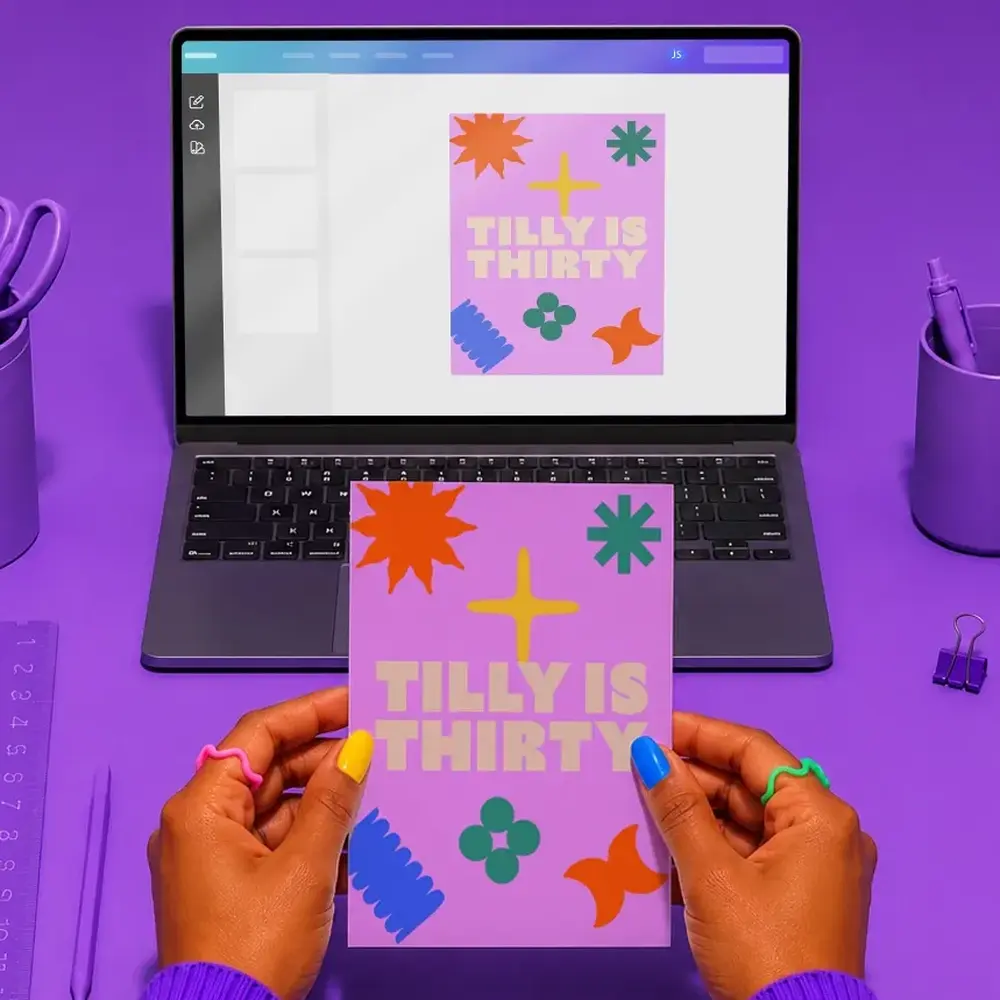
Knowing how to resize in Canva isn’t only helpful for dodging design disasters, it’s also useful for adapting your design for different formats or print products.
How to resize in Canva Pro
1. Open your design in Canva
Login to your account and navigate to the design you want to resize via ‘Projects’ or ‘Recent Designs’. Click your design to open it in the editor.
2. Find the ‘Resize’ button
You’ll find the ‘Resize’ button in the top toolbar on the left side. Give it a click.
3. Choose your new dimensions or format
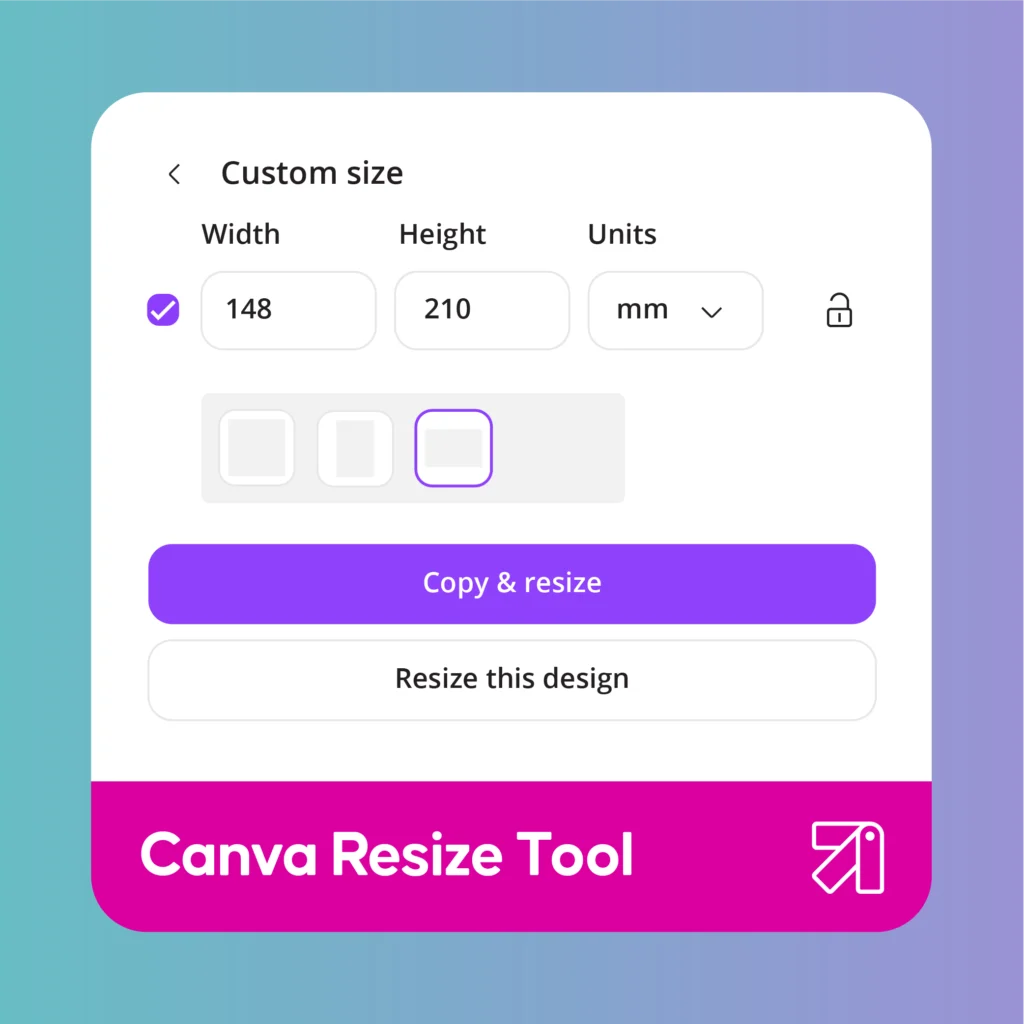
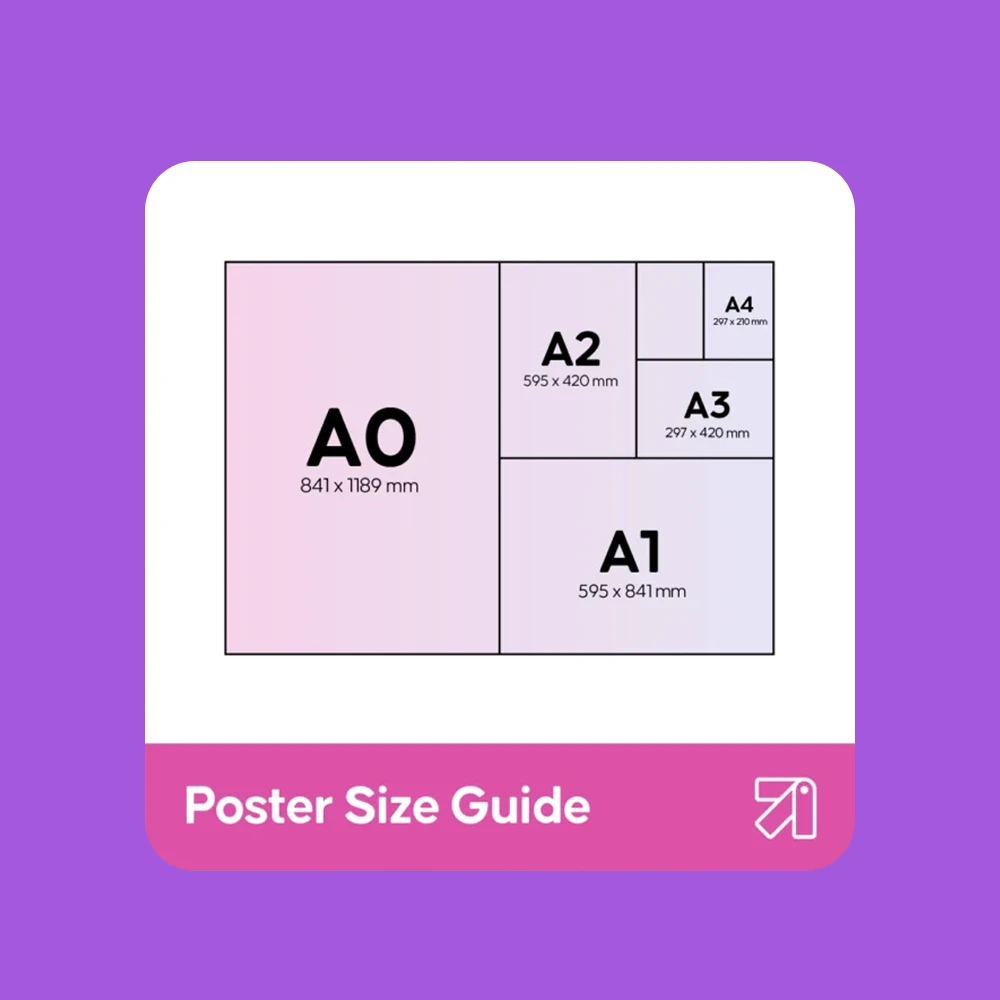
Here, you can either choose a preset size in Canva, or enter your own custom width and height. We recommend entering custom dimensions based on the product you want to print, to ensure your design is the correct size.
4. Apply your new dimensions
Click ‘Resize’ to change your current design, or ‘Copy & Resize’ to create a new design in your updated dimensions while also keeping the original version.
5. Review your resized design
When you resize an existing design, Canva will automatically adjust elements to fit the new dimensions. It’s a good idea to double check your resized design, ensuring all text, images and spacing are all correct and that nothing has been cut off.
6. Export your design
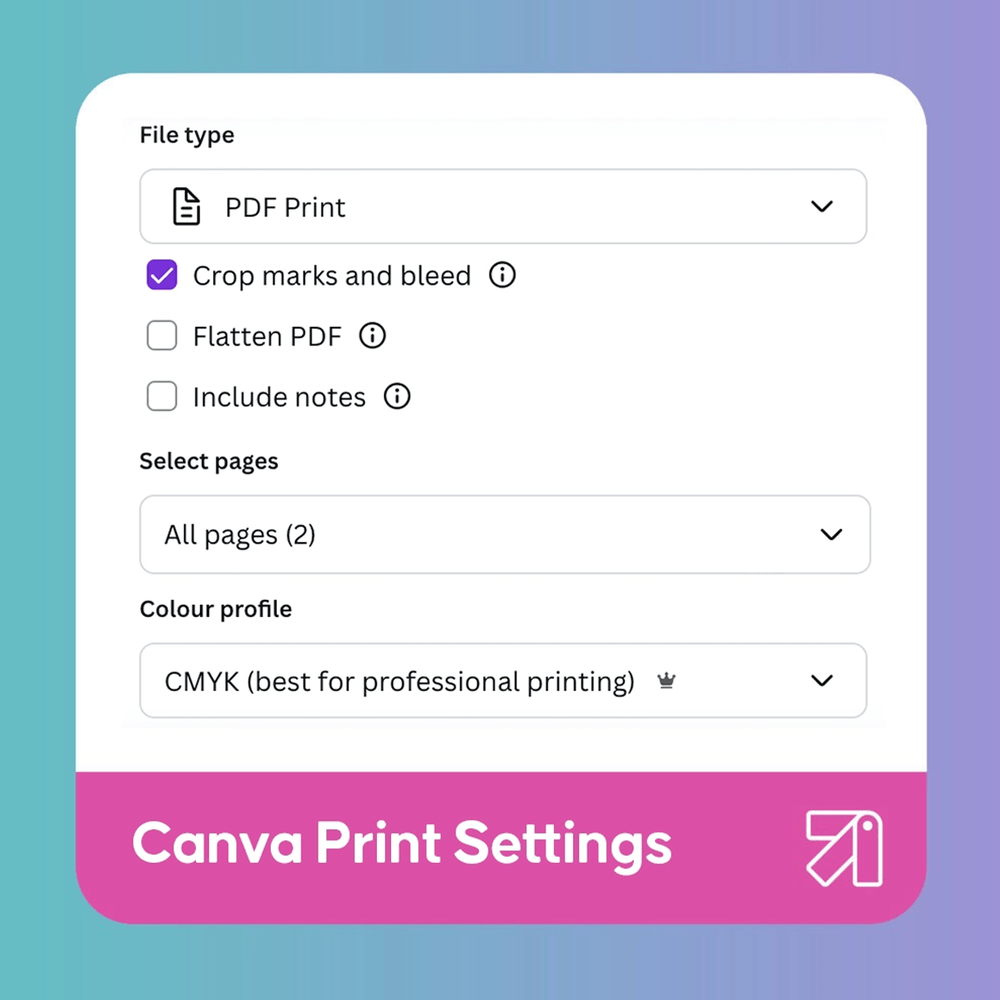
When you’re happy with your design, save it in your desired format. If your design is for printing, we recommend saving as a ‘PDF Print’ file, adding crop marks and bleed, and selecting CMYK colour mode for best results.
How to resize in Canva free
Don’t have a Canva Pro subscription? No worries! You can still resize your design.
1. Create a new canvas
Go to the homepage and click ‘create a design’, then select ‘custom size’ and type in your desired dimensions. Make sure you have the correct unit selected, and have double checked the print product your design is intended for.
2. Copy your original design
Go to your original design and use Ctrl + A (Cmd + A on Mac) to select all design elements, then use Ctrl + C (Cmd + C) to copy.
3. Paste into new canvas
Go to the new blank canvas you created and press Ctrl + V (Cmd + V) to paste your design.
4. Review and adjust
Reposition and resize your design elements to fit the new dimensions.
Resizing a design in the free version of Canva is a slightly more lengthy process, but it’s much quicker than starting again from scratch!
5. Export your design
When you’re ready, export your design in your desired format. There are a few less to choose from in Canva’s free version. If you want to print your design, we highly recommend taking advantage of Canva’s free trial in order to save your work in CMYK colour mode.
If you try to print artwork that’s in RGB colour mode, your design can end up looking dull.
Further Canva support
Looking for more Canva support, design tips and tricks? We’ve got you covered with our guides!
Make it real with Printed.com
There you have it! It’s as easy as that. In a few clicks, you’ve learnt how to resize in Canva, so you’ll never have to deal with dodgy dimensions again.
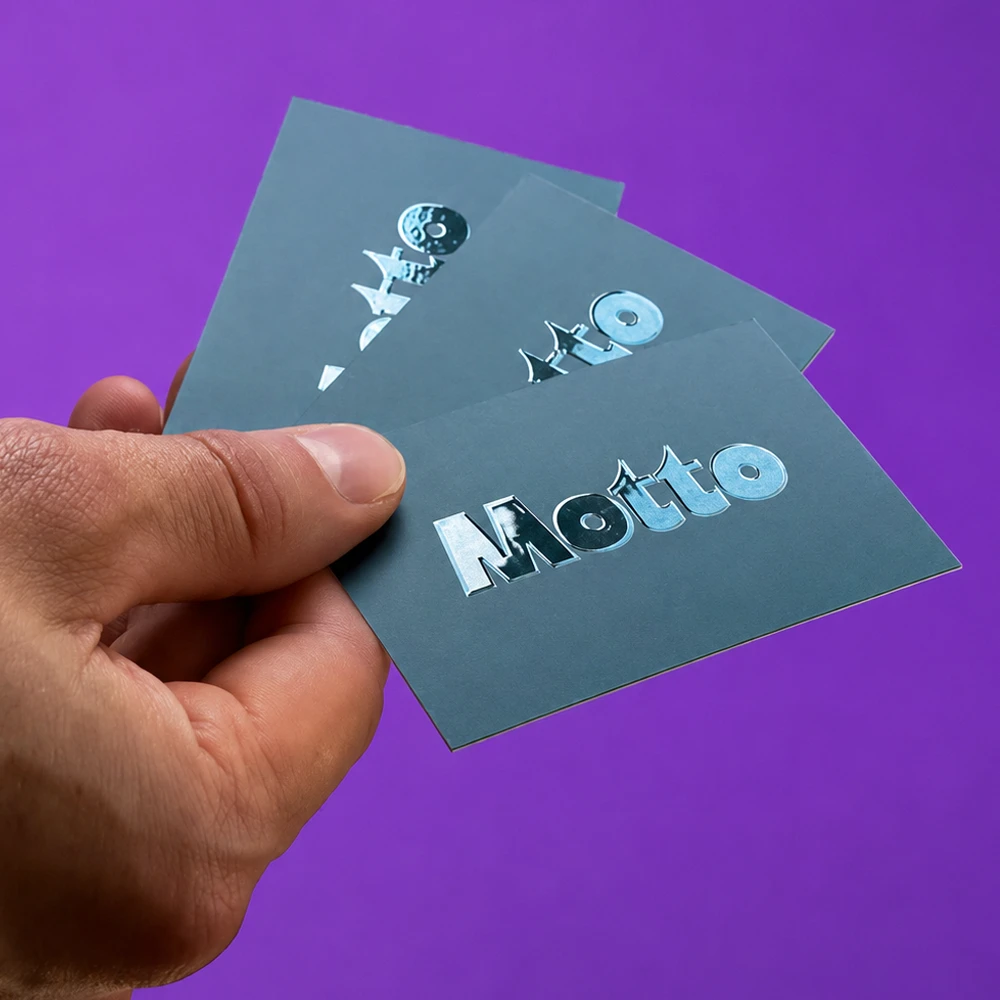
Fancy making your design real? Explore our wide range of print products, from Leaflets & Flyers to Business Cards, Stationery, Stickers, Wedding Print and much more!

About the author
Our in-house designer Becca has a love of all things creative. When she’s not designing, you can find her in Newcastle checking out independent coffee shops or getting her hands dirty with her house renovation.

