
Artwork Help & Print Tips
Free Design Software: Our Top Five Adobe Alternatives
Discover our top picks for free design software and get your artwork ready for print.
The Adobe suite is the choice of many seasoned designers, however for many, the hefty price tag and complex features can be a little daunting. If Photoshop just isn’t your thing, don’t worry – there are other alternatives out there. We’ve rounded up our top free online design software below, plus some additional insights into getting your artwork completely print-ready.
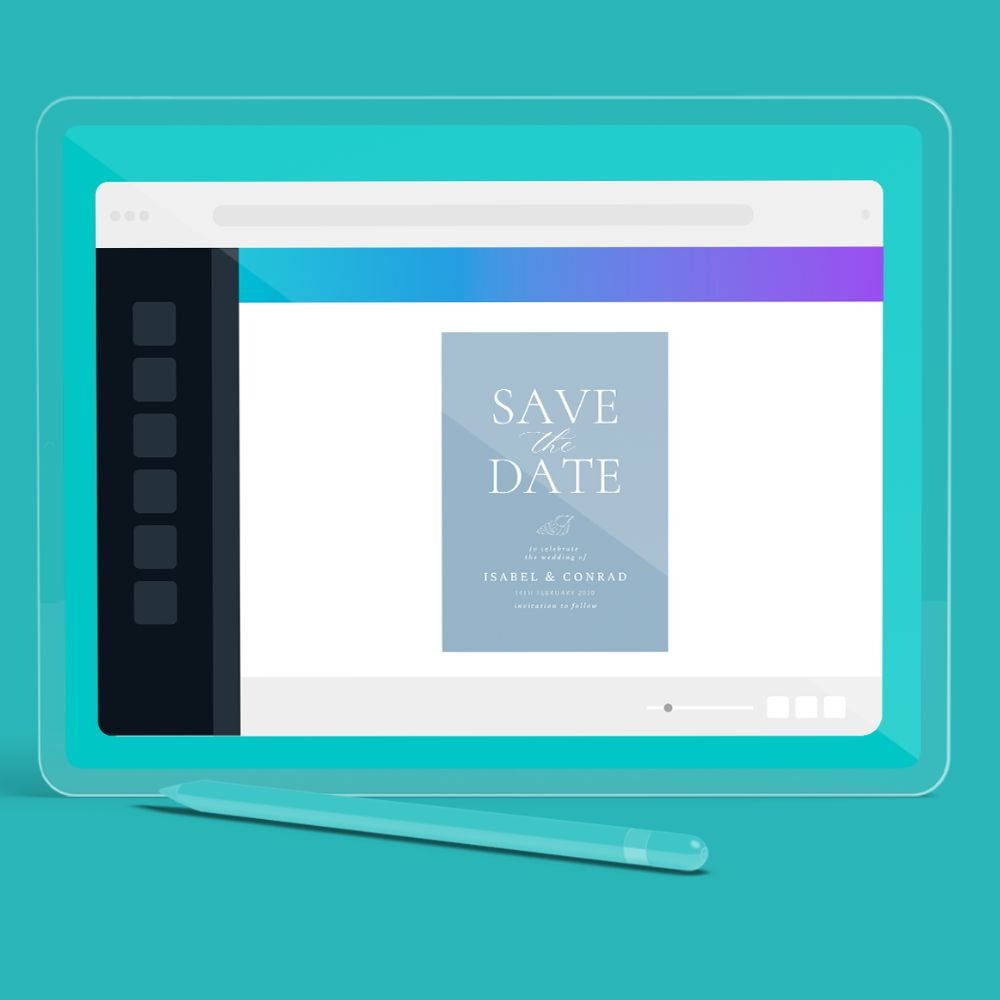
1. GIMP
If you’ve ever searched the phrase ‘free design software’, GIMP probably popped up at the top of the list- and for good reason…
GIMP is an acronym for GNU Image Manipulation Program and is a great choice for photo retouching, image composition and manipulation. Once you’ve downloaded the program, there’s a full suite of editing tools at your fingertips including paint tools, color correction, resizing and image enhancement. While it’s set up quite differently from Photoshop, it does have a version that closely mimics the feel. Perfect if you’ve trained with Adobe or just want to make a switch.
If you’re completely new to graphic design in general, this type of design software might feel a little daunting. (No one likes looking at a blank canvas after all!) Luckily GIMP’s website offers a range of free tutorials that cover everything from converting images to black and white to changing file sizes.
Getting your design print-ready with GIMP
First things first, consider the size of your print. While some of the programs we’ll mention have size built in to their templates, for software like GIMP this will need to be done manually.
Before exporting your files, it’s crucial that you remember to add bleed. Bleed is an area outside the document that’s trimmed after printing and is there as a precaution to make sure there’s no white space left on the document. It’s also really important to make sure that your artwork extends right to the outside edge of the bleed area and that any text is set at least 0.125 inches from the trim line. Don’t want anything important getting cut off after all!
To add bleed, simply change the dimensions of your document to inches and add an extra 0.125 to the width and height and then extend your design over this area.
Once that’s all done and your design is ready, simply click File, Export and select PDF under File Format. Then select ‘Apply Layer Masks Before Saving’ and click Export again. Your file is now print-ready and can be ordered on Printed.com.
2. Canva
One of the most famous free online design tools out there, Canva is perfect for simple editing jobs or if you have no design or image resources of your own. Plus, no download required!
Free to use but with premium options, it has a range of templates and editing tools available. So it is best suited for anyone new to the design game. Its interface is extremely newbie-friendly as when you sign up it’ll recommend you some features. While you can build your designs from scratch, the appeal of Canva is its enormous library of free customizable templates. With everything from social media optimised posts, to print such as Invitations, Business Cards and Flyers. You can easily edit the background, colors, text, borders and more. You’ll find everything you need to customize your project in the lefthand toolbar.
Getting your design print-ready with Canva
When you’re ready, click the Share button in the top right corner and select PDF Print, then add crop marks and bleed. You can also do this by choosing custom dimensions, changing the units to “in” and entering your chosen dimensions plus 0.125 inches to include bleed then make sure you extend your design over that area.
3. Krita
When it comes to free design software for drawing, Krita is the ultimate choice for many.
Created by artists for artists, this software is great for creating and editing concept art, texture and matte paintings as well as illustrations. The program itself boasts a range of artwork tools and brushes to start and even more available to download free from their website. With a much simpler interface than Photoshop, it’s become a popular choice for creatives and designers who may be daunted by the steep learning curve that comes with Adobe programs.
Once you’ve opened a canvas, the left toolbar will have everything you need to start designing, so it’s best to familiarize yourself with that first before you get started. If you need any extra help, their website is packed with design resources such as tutorials, references, textures and even some user-made plugins to help add extra depth to your artwork.
Getting your design print-ready with Krita
While the program itself currently has no capability for exporting PDFs, their website offers some solutions here. PDFs are the best files for printing so we would recommend exporting your design to another program to make it print-ready or use Krita to focus on your digital designs and assets.
4. VistaCreate
Like Canva, VistaCreate is an online design tool with free and paid versions. It has thousands of free templates with AI functionality to help you create and edit a huge range of designs. It’s perfect for quick edits or if you’re lacking design experience.
Specialising in marketing-based print, it has a range of free to use templates for Flyers, Brochures, Letterheads and more. Plus, the handy design tool lets you add any additional colors, text or designs. If you’re looking to make the most of the free features, VistaCreate has a range of tutorials, from getting started with design basics to more advanced techniques with the paid features. You can also access a range of royalty-free images to use in your designs.
Getting your design print-ready with VistaCreate
Getting your VistaCreate design ready for print is simple. Once your design is done, click Export in the top right corner and select PDF Print. Don’t forget to ensure you’ve added bleed and crop marks.
5. Adobe Express
Adobe Express is a free alternative to Illustrator. While Express lacks the extensive features of Illustrator, it’s really easy to use and comes with plenty of free templates, making it an ideal choice for design beginners.
There’s plenty of print-friendly templates to explore, including Invitations, Flyers, Brochures, Business Cards and more. There are also plenty of options for social media designs and even video editing. You can find a great selection of tutorials to help get you started.
Getting your design print-ready with Adobe Express
When you’re ready to export your design, simply head to the Download button in the top right and select PDF Print. You can then easily add crop marks and bleed before choosing color mode – we recommend selecting CMYK for the best results.
And there you have it! That’s our guide on free design software. We hope that you find these tools useful!

About the author
Our in-house Design Team Leader, Becca, has a love of all things creative. When she’s not designing, you can find her checking out independent coffee shops or getting her hands dirty with her house renovation.
