
Artwork Help & Print Tips
Picture Perfect: How to Avoid Pixelated Print
Wondering how to avoid pixelation? This is the guide for you.
Low resolution, pixelated images are a common issue when printing. Sometimes, an image may look great on your screen, but the printed version turns out blurry.
This is a frustrating issue, but the good news is it’s very easy to avoid!
We’re here to give you a helping hand. Here’s a quick guide on how to avoid pixelation and keep your artwork looking crisp, colorful and clear.
What is pixelation?
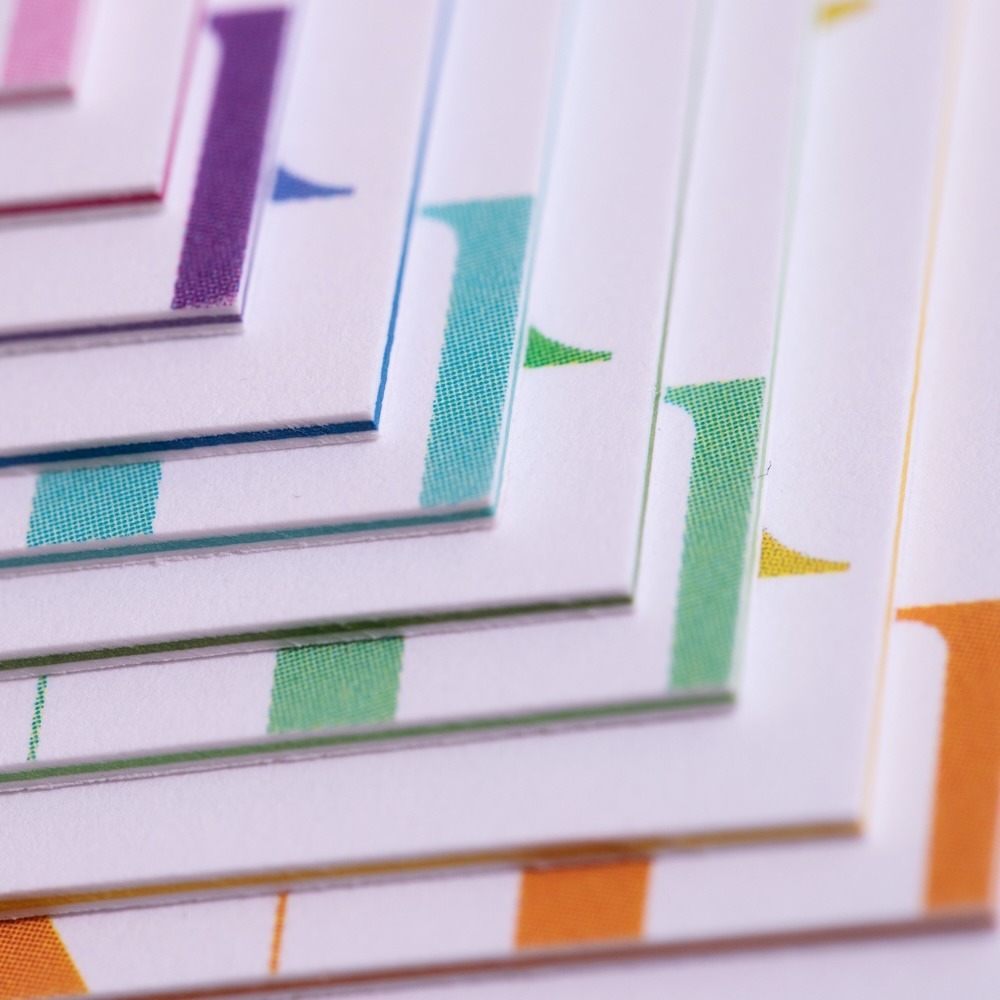
Pixelation happens when the individual pixels of a photo or image become visible, making it look blurry or blocky. This usually happens when an image is enlarged beyond its original resolution or when a low-resolution image is zoomed in on.
If you print a pixelated image, the result will be blurry instead of sharp and clear. Fortunately, it’s simple to avoid pixelated print with our expert tips.
How to avoid pixelated print
Avoiding pixelated print is easy once you know how!
What is DPI?
DPI stands for “dots per inch” and measures an image’s resolution by counting the number of tiny dots within each square inch of an image.
Images that are created only for viewing on a computer screen often have a lower DPI value than those intended for print. This is why sometimes an image might look great on a screen, but appear blurry or blocky once printed.
The higher the DPI of an image, the clearer and more crisp it will be when printed.
When you create a beautiful, glossy print document, you might notice the large file size slows down your computer. This happens because print images require 300 DPI to look their best.
Images viewed on a computer can have a much lower DPI since they don’t need as much detail to look good. Most screen images are around 72 DPI – far less than what’s needed for printing. Understanding DPI is essential to ensure your prints look their best.
Choosing the right color mode
One of the major differences between images that are made for screen viewing and those that are made for printing is the color mode.
Digital-only images can be saved in RGB, while images for printing need to be saved as CMYK.
But what’s the difference?
RGB: Red, Green, Blue – a color mode where the shades are produced by emitting light.
CMYK: Cyan, Magenta, Yellow, Key/Black. These are the four different color inks used by printing presses, all other colors are produced by blending these inks.
Saving images for print in CMYK means that your chosen colors are saved in a language that the printer will understand and faithfully reproduce.
Bigger is better
When taking a photo or creating an image you intend to print, make it as big as possible.
Graphics wise, this means creating it in the largest possible size you could want to use it. If you’re taking a photo, use the highest definition setting possible for your camera.
You can always “down-sample” to reduce the file size or resolution, but you can’t add detail that was never there to start with.
Down-sampling is simply saving a version of your image at a lower resolution or a smaller size. As long as you start with a large high-quality image you’ll end up with a great looking small version or web version.
However, it doesn’t work the other way round. If you try to increase the size of a photo or graphic, you will make the pixels bigger and more noticeable which will look even worse once printed.
Don’t change the file types
All artwork should be saved as a high-quality PDF Print file for the best results. We have plenty of Tools to help you set up your file for print, including our Artwork Editor and Downloadable Templates. If you do need further support, feel free to get in touch with theteamus@printed.com who are happy to help!
These handy tips on how to avoid pixelated print will ensure you get clear, crisp results with pixel perfect designs!
Ready to make it real?

About the author
Our in-house Design Team Leader, Becca, has a love of all things creative. When she’s not designing, you can find her checking out independent coffee shops or getting her hands dirty with her house renovation.
